Global Search
Summary
Use Global search to find files, strings, components, security issues, CVEs, and artifacts in all of your uploaded firmware. On each page, you can export the search results and save the current filters.
How it works
Global search runs your query across every firmware you have permission to view. For each one, it searches the most recent completed analysis.
To use Global search, open the Search in tab in the top menu bar and select one of its pages: Files & Strings, Components, Issues, CVE, or Artifacts.
You can adjust how the results are displayed – for example, grouping them by the firmware they were found in. See Table controls for the full set of options.
On some pages, you can customize the data displayed in the tables. Use the menu to add/remove data columns.
Pages
Files & Strings
Here you can search in...
- File names
- File paths
- File content
- Binary symbols
- Imported functions
- Exported functions
There are two search modes available:
- Equals: lists exact matches only.
- Contains: lists both exact and partial matches.
Note
Searching in file content returns up to 100 matches per firmware.
Components
The table lists every component detected across your firmware. Rows are grouped by component name by default, so you can see every firmware that contains a given component at a glance.
Select a component from the table to open the Component details. Here you can see,
- some basic information about the component (Overview tab),
- the files it contains (Files tab),
- the CVEs found (CVEs tab),
- and a list of items that indicate the methods and sources used in identifying the selected component (Evidences tab).
Component editing is not available on the Global components page.
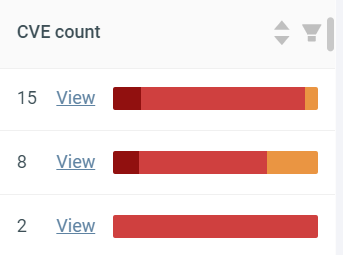
To see the vulnerabilities found in a specific component, enable the CVE count column. To do so, click on the button (under the Choose from saved filters dropdown) and select CVE count.
Hover over a section of the CVE severity index (the colored bar) to see how many vulnerabilities ONEKEY has found in that category.
Warning
Loading times are longer for tenants with a large number of detected components.
Issues
The table lists the security issues found across your firmware. You can search in Basic mode, filtering by fields such as issue type and severity, or in OQL mode, where you write an OQL query.
The table is empty by default and populates based on your search criteria.
Click on an issue to learn more:
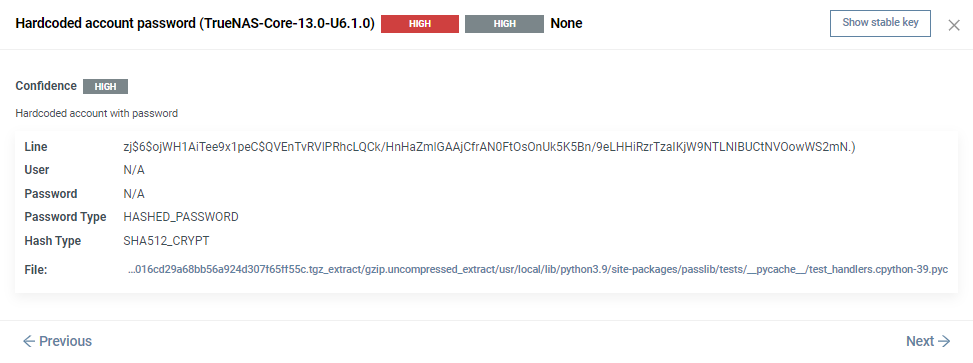
Use the Previous and Next buttons to quickly switch between issues.
To view the audit history, select the Audit trail tab.
CVEs
On this page, you can list vulnerabilities belonging to a specific component or search by vulnerability identifier .
Similarly to the Global issue table, the Global CVEs page shows up empty by default. Select a component from the dropdown to see the matching vulnerabilities.
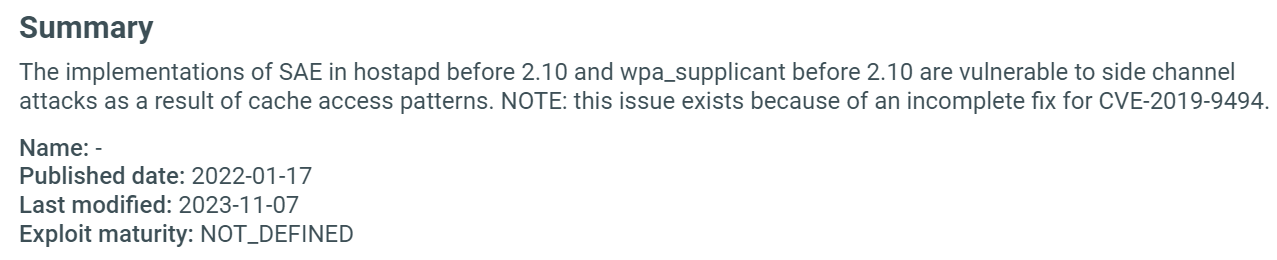
Click on a vulnerability to learn more:
Artifacts
Here you can see the certificates, private keys, and passwords found in all your uploaded firmware.
Use the top search bar to search in all three categories. To search within a specific tab, use the search bar at the top of the data table.
Export results
On any of the five pages, click on Export ... near the search bar to export your results. Results can be downloaded in .csv or .json formats.
Save and use filters
On each page, you can save the current filters by clicking Save current filters. To use a saved filter, select it from the Choose from saved filters dropdown.
Note
Saved filters are stored in your browser and are specific to each page, so they are not shared with other users and do not follow you to another browser or device.
Quick reference
| Feature | Details |
|---|---|
| Scope | All firmware you have permission to view; the most recent completed analysis of each. |
| Files & Strings | Search file names, paths, content, and binary symbols/imports/exports. Choose Equals (exact) or Contains (partial); content search returns up to 100 matches per firmware. |
| Components | Search detected components across all firmware. Enable the CVE count column to see how many vulnerabilities each carries. Component editing is not available here. |
| Issues | Search security issues across all firmware. The table is empty until you search. |
| CVEs | Select a component or search by (partial) vulnerability identifier. The table is empty until you search. |
| Artifacts | Browse the certificates, private keys, and passwords found across all firmware. |
| Export | Export the results of any page to .csv or .json. |
| Saved filters | Stored in your browser, per page – not shared between users or devices. |