Analysis configuration
Summary
Use analysis configurations to enable or disable steps in the analysis process. You can choose which analysis configuration to apply on a firmware either during the upload process or later from the Firmware Info page.
Not every firmware needs the same analysis depth. A routine upload may only need standard detection, while a security-critical device benefits from every available detection method, even if that means a longer analysis.
Analysis configuration lets you save a set of options as a named, reusable preset, so you don't have to re-select the same options for every upload.
How it works
An analysis configuration is a preset of the following settings:
Configurations are specific to your tenant. Every tenant starts with the Default configuration; if you upload a firmware without selecting a configuration, the Default configuration is used.
Each firmware is linked to exactly one configuration. The configuration is only read at the start of a run; editing a configuration or assigning a different one to a firmware has no effect on runs already in progress – it only takes effect the next time you run the analysis.
Modify analysis configurations
- Click Configuration in the top menu bar.
- Select Analysis Configurations.
- Create a new configuration by clicking Create new analysis configuration, or edit an existing one by clicking the Edit icon.
Each configuration name must be unique. The Default configuration's name cannot be changed, but you can edit its settings like for any other configuration.
Note
A configuration can only be deleted if it is not assigned to any firmware.
Run a configuration
When uploading new firmware
In the firmware upload popup:
- Fill the required fields.
-
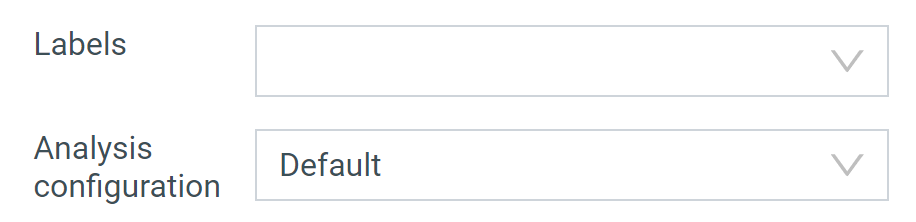
Select a configuration from the Analysis configuration dropdown:
-
Click Start upload.
On a previously uploaded firmware
- Enter Firmware analysis view by selecting a firmware on your dashboard or in the Firmwares tab.
- Select the Firmware Info page.
- Click on the Edit button.
- Select a configuration from the Analysis configuration dropdown
- Rerun the analysis for the new configuration to take effect.
Analysis settings
0-day binary analysis
0-day binary analysis decompiles remotely reachable ELF executables and flags dangerous function calls combined with input from an untrusted source (for example, user input), catching vulnerabilities such as command injection, format string, and stack buffer overflow issues that have no public CVE record.
Disabled by default
See Firmware enumeration for the detected issue types and how binaries are selected.
RTOS analysis
RTOS analysis uses reverse engineering to identify the architecture, load address, and components (RTOS, TCP/IP stacks, crypto libraries, and other compiled units) of Real Time Operating System firmware, then matches the detected components against known CVEs.
Disabled by default
See Firmware enumeration for supported RTOS platforms.
Intelligent deletion
When enabled, intermediate files are deleted after successful extraction to reduce disk usage. For example, if you upload a firmware.tar.gz archive, the intermediate .tar file created during extraction will be deleted once all its files are successfully extracted.
Enabled by default
Note
The download button is disabled for files removed by Intelligent deletion.
Extended component rules
Extended component rules identify software components using fuzzy matching. They complement the existing component detection by searching for:
- File names — Matching component names in file paths
- Symbol names — Matching component signatures in ELF binary symbols
- String contents — Matching component identifiers in binary strings
- Version extraction — Extracting version numbers from any of the above
Detection Levels
- Extended rules are completely disabled
- Analysis relies only on standard component detection methods
- Use when: You want faster analysis or are concerned about false positives
- Very strict matching
- Minimizes false positives but may not find many extra components
- Use when: Accuracy is critical and you prefer fewer, higher-confidence detections
- Balanced matching
- Good trade-off between detection rate and accuracy
- Use when: You want comprehensive component detection with reasonable confidence
- Relaxed matching
- Finds a high number of components but produces a high number of false positives as well
- Use when: Other levels yield too few matches and you can manually verify the results
Enabling extended component rules increases analysis time, especially at looser detection levels.
Warning
The Loose detection level uses relaxed matching that frequently identifies components in unrelated files – for example, it can detect PHP inside Python packages, libgcrypt, or Qt modules. These false positives are inherent to the approach.
Only use Loose when:
- Stricter levels detect too few components for your use case.
- You can manually verify every detected component.
Do not treat Loose-level component detections as reliable without manual review.
Quick reference
| Feature | Details |
|---|---|
| Create/edit/delete configuration | Name must be unique. The default configuration's name is fixed, but its settings are editable. A configuration cannot be deleted while assigned to any firmware. |
| Apply a configuration | At upload time, or later from the Firmware Info page. Requires a rerun of the analysis to take effect. |
| Default configuration | Default is used automatically when no configuration is chosen at upload. |
| 0-day binary analysis | Enterprise feature, off by default. Decompiles remotely reachable binaries for vulnerabilities with no public CVE record. |
| RTOS analysis | Enterprise feature, off by default. Identifies RTOS components using reverse engineering and matches them against known CVEs. |
| Intelligent deletion | On by default. Deletes intermediate extraction files (for example, an archive's intermediate .tar) once extraction succeeds. |
| Extended component rules | Off by default. Fuzzy-matches file names, symbols, strings, and versions against known components. Higher detection levels (Balanced, Loose) find more components at the cost of analysis time and false positives. |