Analysis Profile
Summary
Use Analysis Profile to automatically evaluate vulnerabilities in your firmware analysis. Define rule-based logic using the ONEKEY Query Language (OQL) to automatically assign statuses, add comments, and perform vulnerability assessment. Drag and drop rules to change the order in which they run.
Click Configuration in the top menu bar and select Analysis Profile to access this function.
Here you can create rules using the ONEKEY Query Language (OQL) that automatically update the assessment fields for the vulnerabilities on the selected firmware.
You can set up rules for security issues and CVEs separately on their respective pages.
Rules are evaluated from top to bottom, meaning the bottom most rule will override any previous ones if they involve the same vulnerability; make sure that you place generic rules at the top, and the more specific rules at the bottom. This way, specific rules take precedence over the generic ones.
Don't forget to save your changes before leaving the page.
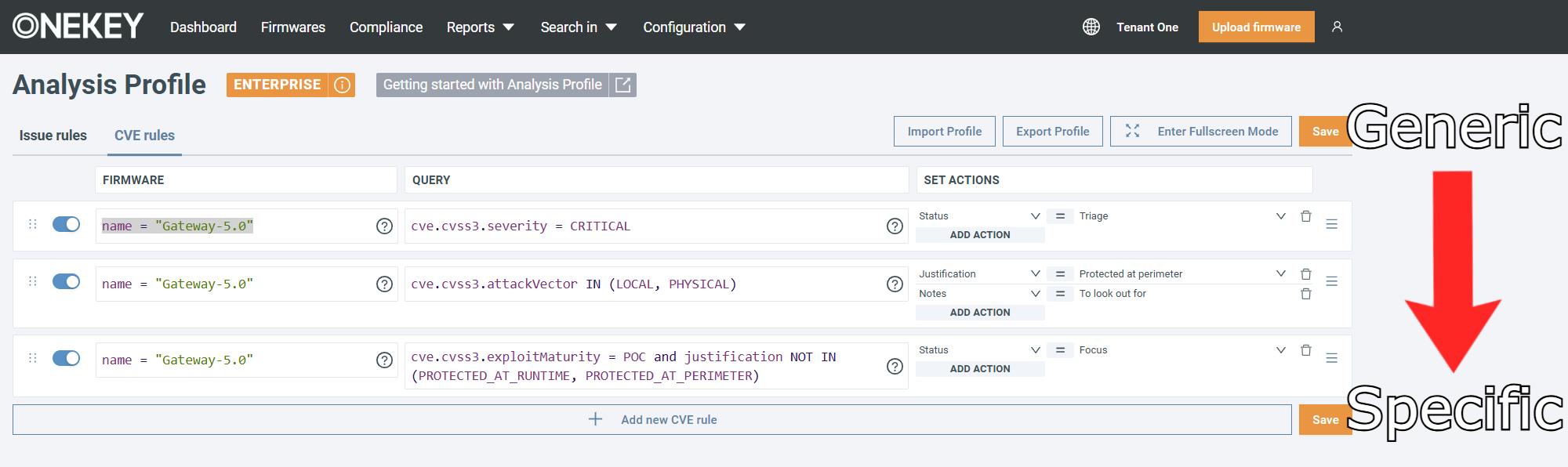
- In the FIRMWARE field use OQL to match on a specific firmware.
- In the QUERY field use OQL to match on a specific group of issues or CVEs.
- In the SET ACTION field, define the action the rule should take. Each rule must have at least one action.
To find out more about a field, see the corresponding section.
For a practical example of using Analysis Profile, see the advanced section of the Filtering out non-relevant CVEs page.
Note
You can temporarily disable rules with the left-hand toggle.
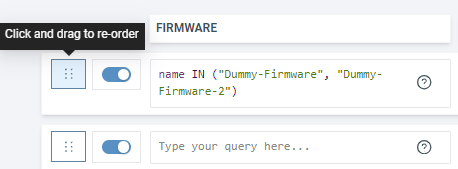
Drag and drop the rules to change their order:
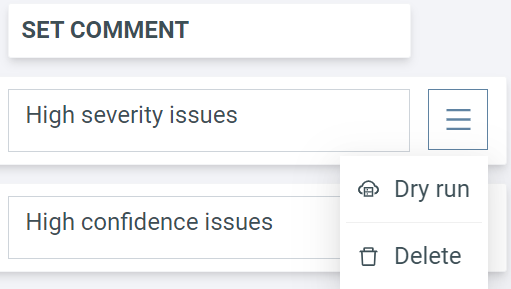
To test a rule, click on the rule menu and select Dry run. To delete a rule, click on the same menu and select Delete.
Analysis Profile rules are applied automatically once an analysis finishes successfully. This can either be after an upload, a monitoring run, or a manually triggered analysis.
Alternatively, you can apply rules manually:
- Select the Firmwares tab.
- Click the checkboxes next to the firmware images to which the rule should be applied.
- Click Apply analysis profile in the top-right corner.
If a vulnerability is affected by multiple rules, only the final status is recorded in the Audit Trail. For example, if a generic rule (rule A) sets a CVE’s status to Fixed, but another rule (rule B) later changes it to Not Affected, only the Not Affected status (set by rule B) will leave a trail.
When a rule updates an assessment field, subsequent rules will operate on the updated value.
An example:
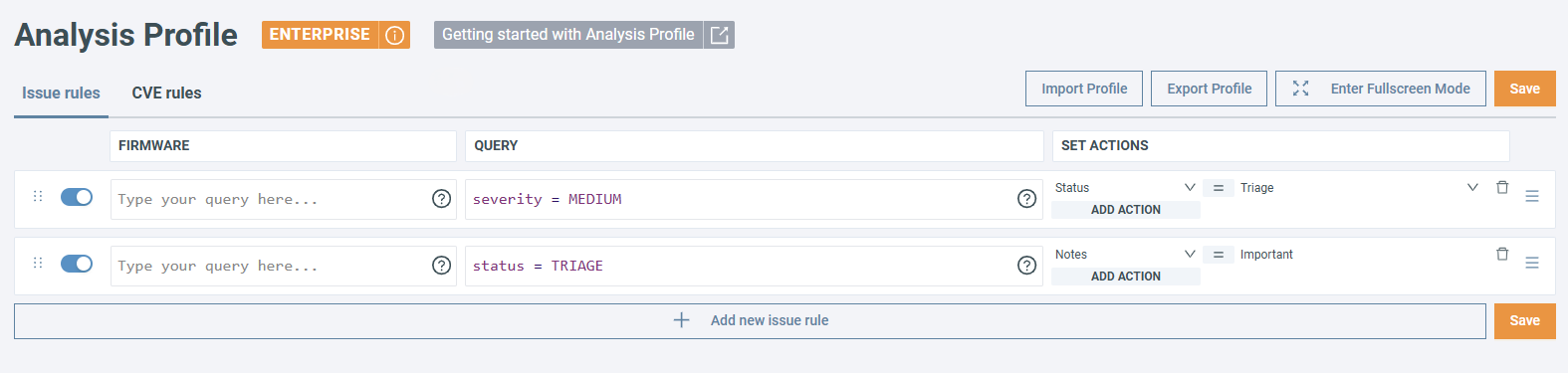
- The first rule sets the status of all CVEs with a match score above 20 to
TRIAGE. - The second rule adds a note saying 'Important' for every CVE in the
TRIAGEstatus. - Because the first rule is evaluated before the second, the note is also added to CVEs affected by the first rule.
Fields
FIRMWARE
Select the firmware where the Analysis Profile rule should run. If you do not specify a firmware, the rule applies to all firmware.
To select single firmware, use the name OQL field with the = operator:
To select multiple firmware, you can use the name OQL field with the IN operator:
QUERY
Select a specific group of issues or CVEs. For example, to select all high severity issues, click Issue rules and use the following OQL:
To select all CVEs without an assigned status, make sure you are on the CVE rules tab and use:
SET ACTION
Specify which vulnerability assessment field to update with the rule. You can update any field available through manual vulnerability assessment, such as Status, Notes, Vendor Response, or SSVC.
By default, each action uses the Set mode, but some actions support additional modes. Click to choose a different behavior:
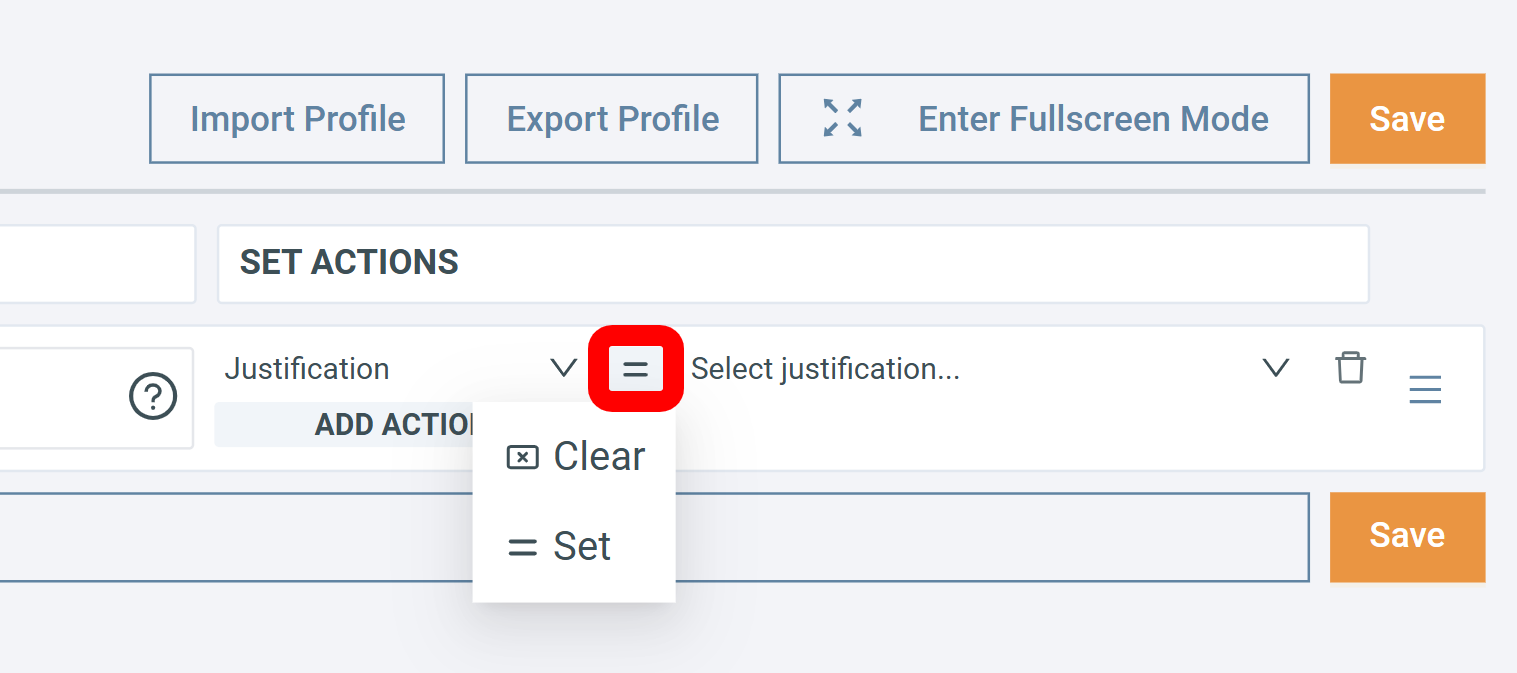
Special action modes
Clear: Remove the existing value.
Available for: Justification, Vendor Response, Notes, Environmental CVSS, CVSS, SSVC
Append: Add your note alongside existing content.
Available for: Notes
Increase: Increase the ranking (e.g., MEDIUM → HIGH).
Available for: Severity
Decrease: Lower the ranking (e.g., MEDIUM → LOW).
Available for: Severity
Analysis Profile rules do not override manually set assessments, but you can manually override fields that were automatically assigned by the function. Both updates are recorded in the Audit Trail.
Notes vs. Comments
Notes are associated with the vulnerability and can be automatically updated by Automated Impact Assessment; they do not appear in the Audit Trail unless a change has been made.
Comments, on the other hand, appear exclusively in the Audit Trail, can only be added manually, and are not linked to the vulnerability itself – they are to explain why an update was made.
Import/Export rules
Click the Export profile button to download your rules (issues, CVEs, or both) in .csv format.
Select the Import profile button to upload a previously exported or a custom .csv file.
Important
Importing a .csv file will overwrite all current rules.
Set a rule while changing an assessment
To make it easier to set new rules for Analysis Profile, you can define a rule directly while assessing a vulnerability:
- Check the box next to an issue or CVE.
- Click on the Set assessment button.
- In the popup, complete the assessment.
- Click Save changes & create analysis rule.
- Complete the rule using OQL or by selecting items under the Firmware and Query sections.
The newly created rule will appear at either the top or bottom of your Analysis Profile page, based on the selected sorting setting. Later you can modify it like any other rule.